

Table of Contents
- Why Wireless Audio Latency Happens (and When You Can Fix It)
- Bluetooth Audio Latency Test: Measure Your Delay Before You Fix It
- The Bluetooth Audio Delay Fix That Works for Most Devices
- How to Reduce Bluetooth Latency on PC and Laptop
- Fixing Bluetooth Audio Delay on Android Phones and Tablets
- Codecs, Distance, and Interference: What Actually Moves the Needle
- When Wireless Audio Latency Can't Be Fixed: Alternatives That Work
- Frequently Asked Questions
Last Updated: October 14, 2026
Why Wireless Audio Latency Happens (and When You Can Fix It)
Wireless audio latency is the delay between a sound being created and you hearing it through Bluetooth headphones or speakers. The audio is compressed, sent over the air, and decoded again, a detour that costs time.

The delay usually comes from three places at once:
- Encoding and decoding - your device compresses audio, then the headphones unpack it
- The Bluetooth connection itself - a shared, crowded wireless band
- Your app or device settings - video players and games buffer differently
Some of that delay is fixable in minutes; some isn't. Below, we'll show you how to measure your delay, then how to reduce wireless audio latency on your devices.
Bluetooth Audio Latency Test: Measure Your Delay Before You Fix It
Before changing a setting, measure what you're dealing with. A Bluetooth audio latency test tells you whether the delay is tolerable or worth chasing, and you only need your ears, a phone or laptop, and two minutes.
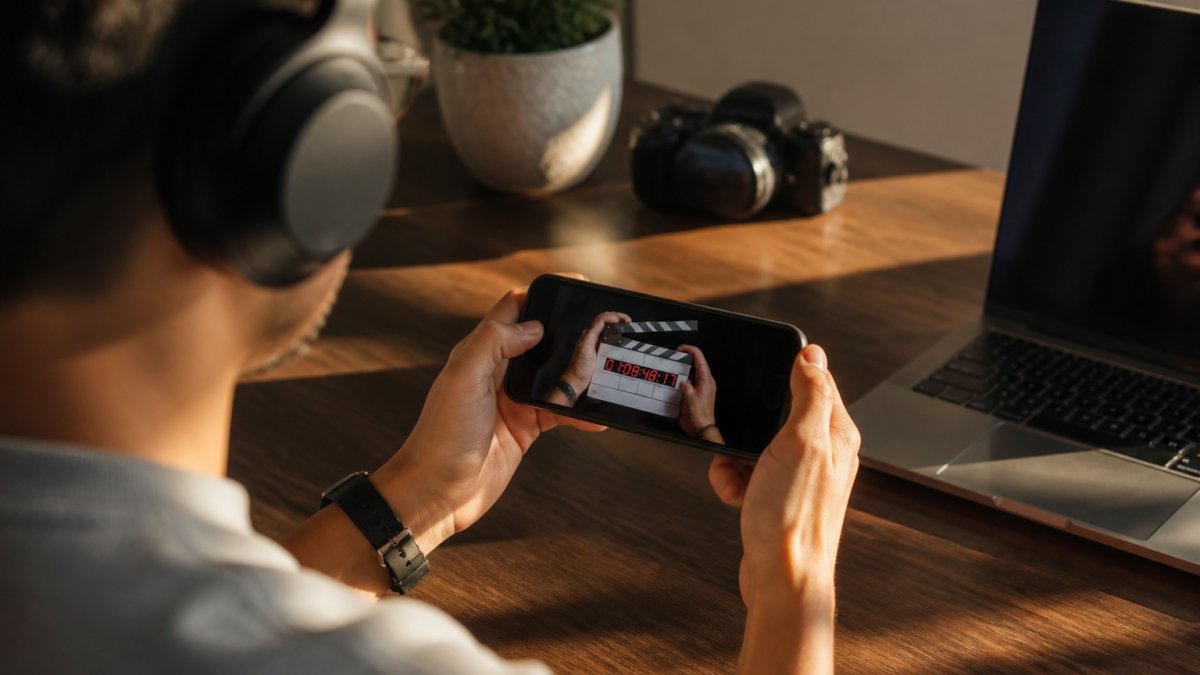
How to Run a Latency Test on Any Device
- Play a video with clear speech and visible lip movement.
- Watch the mouth and listen to the voice at the same time.
- Note how far the sound trails the lips.
- Repeat with a wired connection for comparison.
- Repeat once more after moving closer to your device.
If the delay shrinks when you sit closer, interference or distance is your problem. If it stays the same, it's likely codec or device related.
For a more precise reading, some apps and browser tools flash a light while playing a tone, letting you match the two by eye. The number is rough but consistent enough to show whether a fix helped.
The Bluetooth Audio Delay Fix That Works for Most Devices
The single most effective Bluetooth audio delay fix is a clean reset: unpair, clear the old pairing data, and pair again from scratch. Stale pairing data is a common cause of lag that builds up over months, and it resolves a surprising share of everyday complaints.
Step-by-Step: Reset, Unpair, and Re-Pair Your Devices
- Turn Bluetooth off on your phone, PC, or tablet.
- Open your Bluetooth settings and forget or remove the audio device.
- On the headphones, hold the power button until you see a reset or pairing flash.
- Restart both the headphones and the source device.
- Turn Bluetooth back on and pair fresh.
- Play the same test clip and compare the delay.
If the lag returns within a day, the issue isn't pairing data. Move to the platform-specific fixes below.
How to Reduce Bluetooth Latency on PC and Laptop
On Windows, the biggest wins come from settings, not hardware. To reduce Bluetooth latency on PC, switch your headset from hands-free mode to stereo mode and disable audio enhancements.
Windows Settings That Cut Audio Lag
- Sound settings: pick the "Stereo" output, not "Hands-Free AG Audio"
- Device properties: turn off spatial sound and audio enhancements
- Power options: set the wireless adapter to maximum performance
Hands-free mode is the usual culprit: it exists for calls, runs at lower quality with more delay, and makes games and video suffer.
For deeper background on how Bluetooth handles audio streams, the Bluetooth SIG core specification overview explains the underlying profiles.
Fixing Bluetooth Audio Delay on Android Phones and Tablets
Android gives you more control than most people realise. Here are the settings that move the needle.
Android
Bluetooth audio delay on Android often comes down to one setting: developer options.
- Open Settings → About phone and tap Build number seven times to unlock Developer Options.
- Go to Settings → System → Developer options.
- Find Bluetooth audio codec and try the low-latency options your phone and headphones both support.
- While you're there, check Bluetooth AVRCP version and Bluetooth audio sample rate, mismatches here can add delay.
Other Android fixes worth trying:
- Disable battery saver, which can throttle the Bluetooth radio
- Turn off "Bluetooth scanning" in location settings
- Remove unused paired devices
Not every Android device exposes the codec menu. If yours doesn't, focus on distance, interference, and a clean re-pair.
iOS and iPadOS
Apple hides the codec choice, so the levers differ:
- Forget and re-pair the headphones in Settings → Bluetooth
- Turn off Automatic Ear Detection if you're using AirPods and hearing dropouts
- Disable Headphone Accommodations in Accessibility → Audio/Visual, it can add processing
macOS
- Open Audio MIDI Setup (in Utilities) and confirm the output device is set to the correct sample rate
- In System Settings → Bluetooth, remove and re-add the device
- Turn off Bluetooth for devices you aren't using, macOS will happily hold several connections at once
Windows
- Sound settings: pick the "Stereo" output, not "Hands-Free AG Audio"
- Device properties: turn off spatial sound and audio enhancements
- Power options: set the wireless adapter to maximum performance
Smart TVs and streaming devices
Many TVs and streaming sticks let you delay the video to match the audio, often the fastest fix:
- Look for Audio Delay, Lip Sync, or AV Sync in the TV's sound settings
- On some platforms this is under Accessibility or Display & Sound
- If your TV has a Game Mode, enable it, it reduces video processing and tightens sync
Gaming consoles
- PlayStation: Settings → Sound → Audio Output → adjust Audio Format and check for a Delay slider
- Xbox: Settings → General → Volume & audio output → try different formats; some add more latency than others
- Nintendo Switch: Settings → TV Output → match the audio format to your setup
The diagnostic decision tree
When delay shows up, isolate the source first:
- Does the delay appear with a wired connection? If yes, the problem is the source or app, not Bluetooth.
- Does it appear in every app? If no, it's the app's buffering.
- Does it shrink when you move closer? If yes, it's interference or distance.
- Does it disappear after a clean re-pair? If yes, it was stale pairing data.
- Does it persist across all of the above? It's the codec or hardware, no setting will remove it.
Codecs, Distance, and Interference: What Actually Moves the Needle
Three things decide how much delay you feel: the codec, the distance, and how crowded the airwaves are. Knowing roughly how many milliseconds each is worth lets you fix latency on purpose.
Bluetooth Dual-mode Wireless TV Headphones With Low Latency →
What the numbers actually look like
Bluetooth audio latency is measured in milliseconds (ms). As a rough reference:
- Under ~20 ms, effectively imperceptible for speech and music
- ~20-40 ms, fine for video and most music; trained ears may notice it
- ~40-100 ms, noticeable lip-sync drift on video, distracting in games
Consumer Bluetooth audio typically lands in the 100-200 ms range end-to-end, the sum of several stages:
- Capture and buffering on the source device
- Encoding into the codec
- Transmission over the 2.4 GHz band
- Decoding on the headphones
- Playback buffering in the headset's DSP
A low-latency codec shrinks steps 2 and 4. A better radio environment shrinks step 3. Nothing in a settings menu removes step 1 or step 5.
The codecs that matter
A codec is the method used to squeeze audio into a Bluetooth signal. Some prioritise quality, others speed. The common ones:
- SBC, the mandatory baseline codec. Widely compatible, but the highest latency of the common options.
- AAC, used heavily by Apple devices. Better sound than SBC, latency varies by implementation.
- aptX and aptX Low Latency (aptX LL), Qualcomm's family. aptX LL is specifically designed to cut delay for gaming and video.
Both ends of the chain must support the same codec. A phone offering aptX LL paired with SBC-only headphones falls back to SBC, and the delay reflects that.

Distance and interference
Distance and interference work together. Walls, microwaves, and crowded Wi-Fi bands all compete for the same 2.4 GHz space. Move closer and delay usually drops; move behind a wall or into a room full of active Wi-Fi and it climbs.
Practical steps that reliably help:
- Keep the source and headphones in the same room, ideally within a few metres
- Turn off Wi-Fi on devices you aren't using, especially on the same band
- Keep the phone or laptop out of a pocket pressed against your body
Quick diagnostic table
| Problem | Likely Cause | Practical Fix |
|---|---|---|
| Constant small delay | Codec choice | Switch to a low-latency codec both devices support |
| Delay that grows with distance | Distance or walls | Move closer to the source |
| Stutter plus delay | Multi-device congestion | Disconnect unused devices |
| Delay only in calls | Hands-free mode | Switch to stereo output |
| Delay after months | Stale pairing data | Unpair and re-pair |
| Delay only in one app | App buffering | Check the app's audio sync setting |
For the underlying profiles and how codecs sit inside the Bluetooth stack, the Bluetooth SIG core specification overview is the primary reference.
When Wireless Audio Latency Can't Be Fixed: Alternatives That Work
Some situations demand real-time audio, and Bluetooth isn't built for that: live monitoring, competitive gaming, and music production all sit in that category.
When delay has to be near zero, your options are:
- Wired connection - a 3.5mm cable removes the wireless hop entirely
- Dedicated low-latency transmitters - a base station that pairs directly with the headset
- Dual-mode headsets - switch between wireless convenience and wired accuracy
This is where gear choice matters more than settings. Our Bluetooth Dual-mode Wireless TV Headphones With Low Latency ship with a transmitter plus fibre optic, 3.5mm, and AUX cables, so you can go wireless for casual listening and wired when timing becomes critical.
For gamers who want low latency without a cable, the KP-H105 Over-Ear Bluetooth Headphones pair a 40mm speaker with a 10m transmission range and 15 hours of play time. The Gaming Bass Bluetooth Headphones cover the same ground with a built-in microphone for chat.

If you want to understand how much delay human ears can actually detect, the BBC research on audio-visual sync perception is a useful reference point.
Wireless audio latency is a trade-off, not a flaw.
When timing truly matters, the answer isn't another setting. It's the right hardware.
Frequently Asked Questions
Is 75ms audio delay noticeable?
Yes, 75ms of audio delay is noticeable during gaming, video watching, and live monitoring. Research on audio-visual synchronization shows that most people detect lip-sync issues starting around 45ms for video and 75ms for gaming feedback. For casual music listening, 75ms is harder to notice because there is no visual reference. If you are a competitive gamer or streamer, aim for under 40ms. A Bluetooth audio latency test will tell you exactly where your current setup lands.
Can a different Bluetooth codec reduce audio latency?
Yes. Bluetooth codecs handle audio compression and transmission differently, and latency varies significantly between them. SBC, the default codec, typically produces 150-250ms of delay. AAC improves this slightly. Low-latency codecs like aptX Low Latency and LC3 can drop delay to 40-70ms. Both your phone or PC and your headphones must support the same codec for it to activate. Check your device settings to confirm which codec is in use and whether a lower-latency option is available.
How do I fix audio delay when gaming with wireless headphones?
Start by switching your headphones to Game Mode if they have one, which activates the lowest-latency codec available. On PC, open Sound Settings and disable audio enhancements that add processing time. Move your Bluetooth adapter or dongle to a USB port away from other wireless devices to reduce interference. If delay persists above 60ms, use a 2.4GHz wireless dongle or a wired 3.5mm connection instead. Products like the Bluetooth Dual-mode Wireless TV Headphones with Low Latency include a dedicated transmitter that bypasses standard Bluetooth lag.
Does using a wired connection eliminate wireless audio latency?
A wired connection removes Bluetooth transmission delay almost entirely, bringing latency down to near-zero for analog cables or under 10ms for USB audio. This is why professional audio engineers and competitive esports players use wired headphones for critical listening. If your headphones have a 3.5mm jack or USB option, plugging in is the most reliable fix. For situations where you need to stay wireless, a 2.4GHz transmitter delivers much lower latency than standard Bluetooth, typically under 30ms.